
The Run Command in Windows computers is one of the most unused, but a most powerful feature. Run command feature, first implemented in Windows 95 and so on. It comes with a single-line command line interface, which is used to directly open an application or a document, whose path is known.
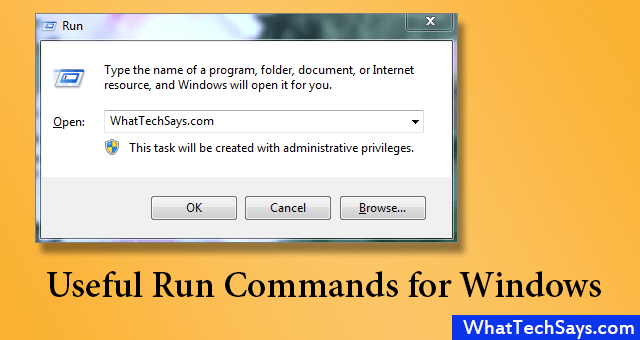
How to open Run Command
There are two ways to open Run command window.
1) Go to Start >> All Programs >> Accessories >> Run
2) Win + R is the shortcut for Run command.
Some Useful Run Commands
There are many run commands, But I described here few of them, which are useful to you to operate your computer faster than before. Let’s check them out.
| RUN COMMAND | ACTION |
|---|---|
| Secpol.msc | Local Security Policy Settings |
| Control keyboard | Keyboard Properties |
| ipconfig/all | display all IP configuration |
| ipconfig/displaydns | Display DNS settings |
| ipconfig/flushdns | Removes the content of DNS cache |
| ipconfig/renew | Renew IP configuration Settings |
| ipconfig/release | Cancels IP configuration |
| inetcpl.cpl | Internet Properties |
| iexpress | Self extracting/Self Installing .cab file generator |
| joy.cpl | Game Controller |
| fonts | Windows fonts folder |
| control folders | Folder options |
| sigverif | File signature verification |
| Eventvwr.msc | Event Viewer |
| control color | Display Appearance properties |
| control desktop | Display properties |
| diskpart | Partition manager |
| diskmgmt.msc | Disk Management |
| dfrg.msc | Disk Defragmenter |
| dxdiag | Display System Information |
| cleanmgr | Disk cleanup |
| devmgmt.msc | Device Manager |
| compmgmt.msc | Computer Management |
| dcomcnfg | Component Services |
| cmd | Command Prompt |
| chkdsk | Checking Disk |
| charmap | Character Map |
| certmgr.msc | Certificate Manager |
| calc | Calculator |
| fsquirt | Bluetooth file transfer |
| wuaucpl.cpl | Automatic Windows updates |
| control admintools | Administrative tools |
| appwiz.cpl | Add/Remove Programs |
| hdwwiz.cpl | Add Hardware |
| access.cpl | Accessibility Options |
| logoff | Log Off computer |
| control mouse | Properties of mouse |
| control netconnect | Network Connections |
| netsetup.cpl | Network Configuration |
| packager | Manage links |
| osk | On-Screen keyboard |
| perfmon.msc | Monitor performance |
| powercfg.cpl | Power Options |
| control printers | Printer and Fax properties |
| regedit | Registry Editor |
| mstsc | Remote Desktop Connection |
| control schedtasks | Scheduled Tasks |
| wscui.cpl | Security Center |
| shutdown | Turn off your computer |
| mmsys.cpl | Sounds and Audio Devices |
| sysedit | System Configuration Editor |
| msconfig | System Configuration Utility |
| taskmgr | Task Manager |
| lusrmgr.msc | Users Accounts |
| sysdm.cpl | System Properties |
| write | Microsoft Wordpad |
| timedate.cpl | Date and Time Properties |
Final Touch
All these commands are very helpful for a computer geek and tested in Windows 8.1. In the next tutorial I’ll show you, the easiest way to create your own Run command.