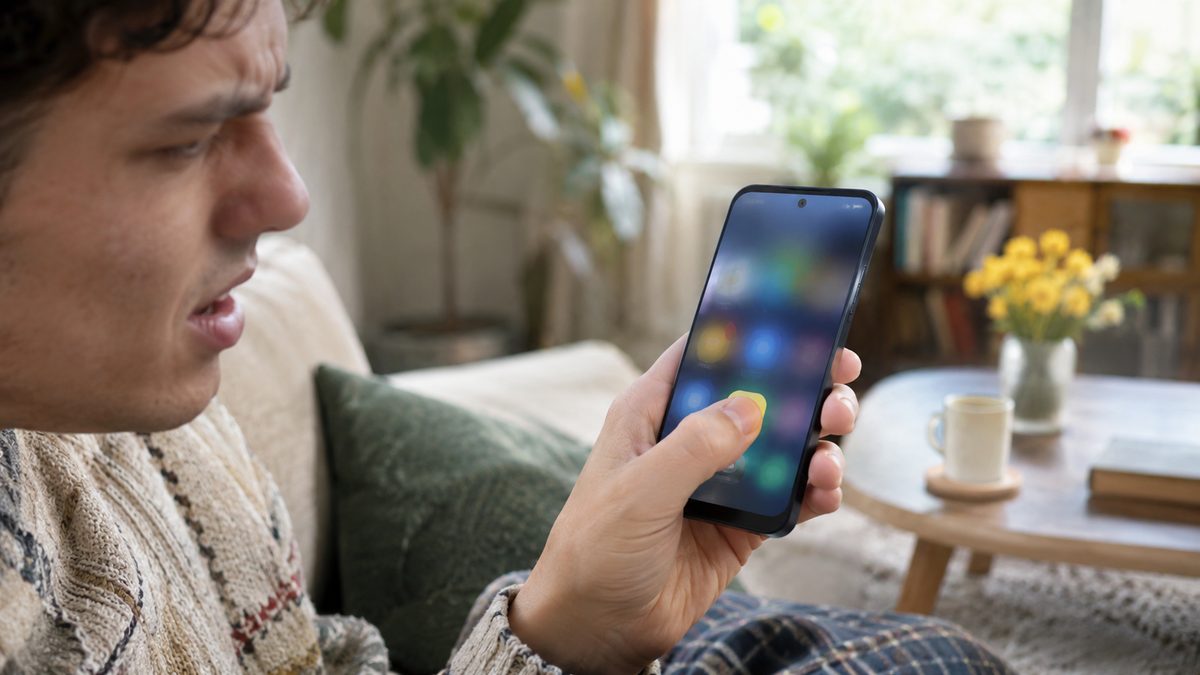
If your Android icons won't move, the cause is almost always a setting, not a broken phone. On a Samsung Galaxy, a switch called Lock Home screen layout stops you from moving or removing anything, so turning it off fixes it in about ten seconds. Pixel phones have no such lock, so there the usual culprits are the way you press the icon or a launcher that needs its cache cleared.
Why icons get stuck, and which phones are affected
Samsung says it plainly on its support page: if the Home screen layout is locked, you will not be able to move apps and widgets on the Home screen. The lock exists so you don't knock icons around by accident. Plenty of people turn it on once, forget about it, and months later think the phone is frozen.
Engadget, in a recent guide to this exact problem, points to two other causes. Many phones can auto-sort icons in the app drawer, alphabetically or by install date, and big app or system updates can change the home screen grid. That explains icons that move on their own. When icons won't move at all on a Pixel or another phone with stock Android, Engadget suggests clearing the launcher's cache.
One case looks like a bug and isn't: on Pixel phones you can't move the "At a Glance" block at the top of the screen. Google's help page says so directly. Everything below it can move, that one block can't.
How to unlock and move icons, step by step
On a Samsung Galaxy phone
- Touch and hold an empty spot on your Home screen.
- Tap Settings at the bottom of the screen.
- Find Lock Home screen layout and tap its switch so it's off.
- Go back to the Home screen, touch and hold an app, and drag it where you want it.
You can also get there through the Settings app: open Settings, then tap Home screen.
If the mess is in the Apps screen (the one you get by swiping up) rather than on the Home screen, check the sort order. Tap More options (the three dots), then Sort. With Alphabetical order picked, Samsung arranges everything for you. Pick Custom order if you want to drag apps around yourself. Custom order is the default. Still in the same menu, Clean up pages fills the empty gaps that show up after you uninstall apps.
On a Google Pixel phone
- Touch the icon and start dragging right away. Google's steps say to touch and drag the item, and you'll see small images of your Home screens.
- Slide the icon to where you want it. To make a new Home screen, slide it to the right until a blank screen appears.
- Lift your finger.
The common mistake: if you touch and hold, then lift your finger, the Pixel shows the app's shortcut list instead of picking up the icon. It feels like the icon refused to move. It didn't, you just let go too early. Keep your finger down and move it.
To drop an app onto another and make a folder, drag it on top of the second app and lift. To take an app off the Home screen without uninstalling it, drag it up to Remove.
If it still doesn't work
1. Restart the phone. Boring, but it clears a stuck launcher more often than you'd expect. On a Pixel 6 or later, press and hold Power and Volume up, then tap Restart.
2. Clear the launcher cache. On a Samsung, Samsung's own troubleshooting guide says: open Settings, tap Apps, search for and tap One UI Home, tap Storage, then Clear cache. On a Pixel, open Settings, tap Apps, then See all apps, pick the launcher (Pixel Launcher), and tap Storage & cache, then Clear cache. Clearing cache doesn't touch your layout.
3. Clear the launcher's data, but only as a last step. On Samsung, Clear data under One UI Home resets the launcher completely. Samsung warns that your Home screen layout, Home screen settings and Home screen apps go back to default. Your apps and what's inside them stay. Take a screenshot of your screens first so you can rebuild them.
4. Test in safe mode. A third-party launcher or a home screen app you installed can grab the touch gestures. Safe mode starts the phone with only the built-in apps. On a Pixel 6 or later, press and hold Power and Volume up, then touch and hold Restart or Power off and tap OK. Google warns that safe mode removes some widgets, so screenshot them first. If icons move fine in safe mode, uninstall recent apps one by one until you find the culprit. This matters most if you tried a third-party launcher at some point, since those apps take over the Home screen.
Video: How to Unlock Home Screen Layout on Samsung (Easy Tutorial)
Video by YourSixStudios.
Quick answers
Why can't I move apps on my Samsung home screen?
Lock Home screen layout is on. Touch and hold an empty spot, tap Settings and turn that switch off. Samsung's help page confirms that a locked layout blocks moving both apps and widgets.
Why do my apps keep rearranging themselves?
On the Samsung Apps screen, Alphabetical order puts apps in A to Z order on its own. Switch to Custom order under More options, then Sort. A large software update can also change the grid once, which is normal. If you are rebuilding a Pixel Home screen anyway, our guide to Create My Widget on Pixel shows a handy widget to add.
Will clearing One UI Home data delete my apps?
No. Samsung says the existing app data isn't affected. You lose the arrangement and the Home screen settings, which is why clearing cache comes first and clearing data comes last.
Samsung's full guide to these settings is on its Organize the Home screen support page.
Sources
- Samsung Support: Organize the Home screen on your Galaxy phone or tablet
- Samsung Support: Troubleshoot issues with One UI 6.1 Galaxy AI update (Reset One UI Home)
- Pixel Phone Help: Add apps, shortcuts & widgets to your Home screens
- Engadget: Common reasons your Android phone's icons won't move and how to fix it